
 kenneth
 Who is this article for?
- Store Managers & Business Owners configuring storefront self-service ordering and branding physical table assets.
About Table QR (Static)
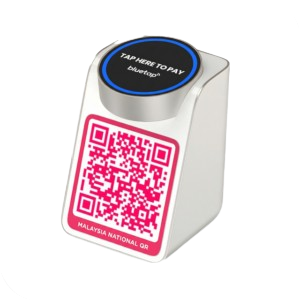
Table QR codes offer a permanent, physical self-service solution for dine-in tables. By placing custom branded QR plaques on your tables, guests can scan to view your digital menu and submit orders directly from their mobile phones.
Before you begin
- Prepare a high-resolution file of your brand or restaurant logo (JPEG or PNG format).
- Decide which dining sections and physical tables will feature self-service ordering.
- Static QR generation via the front-end app is currently supported on Mobile View (or via Web Console).
- Upon submission, physical static QR codes are printed and shipped directly to your storefront.
Setting up Table QR Codes (Static) on Mobile:
- Access Table Management: Tap the Sell tab on the bottom navigation bar, then press the Manage Tables option.
- Open Table QR Setup: Locate the option titled Table QR in the top-right corner of the screen and press it.
- Upload Shop/Brand Logo: Upload the shop or brand logo that you wish to modify and display on your table QR plaques.
- Submit QR Request: Press the blue Submit Request button located at the bottom part of the screen.
💡 Confirmation Signal: Upon submission, your static QR plaques will be sent to your store physically. Once received, simply paste them on the respective tables for customers to scan and order.
Next Article ━━━━━━
Adding a New Payment Method
Continue to the next article to complete your EPOS360 setup.
Read Next →

 Malaysia
 Global
 Singapore