
 Krystine

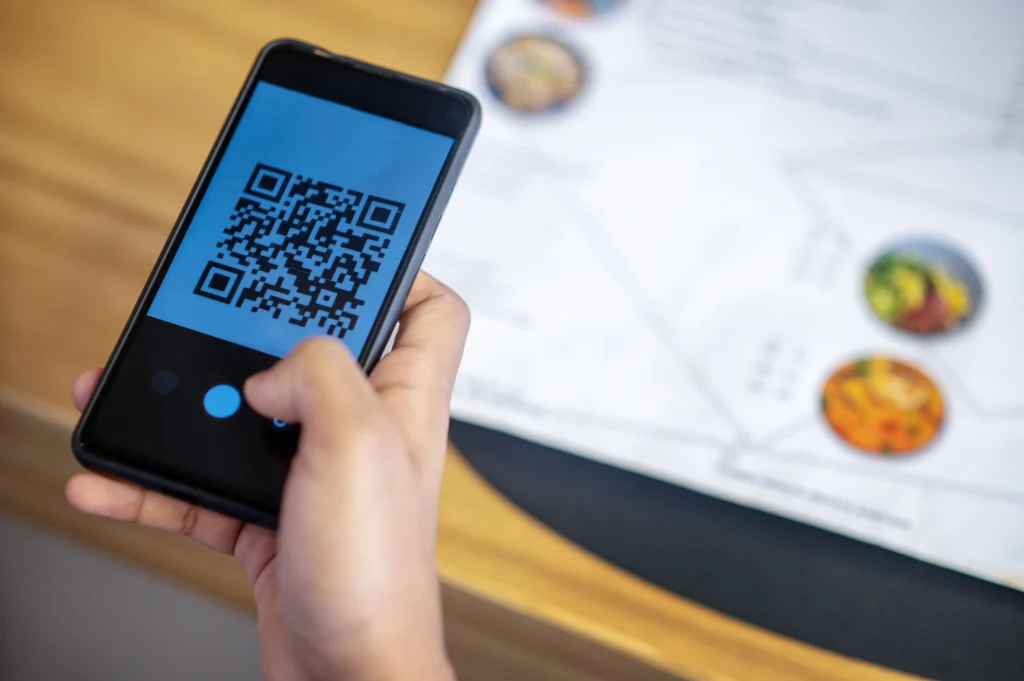
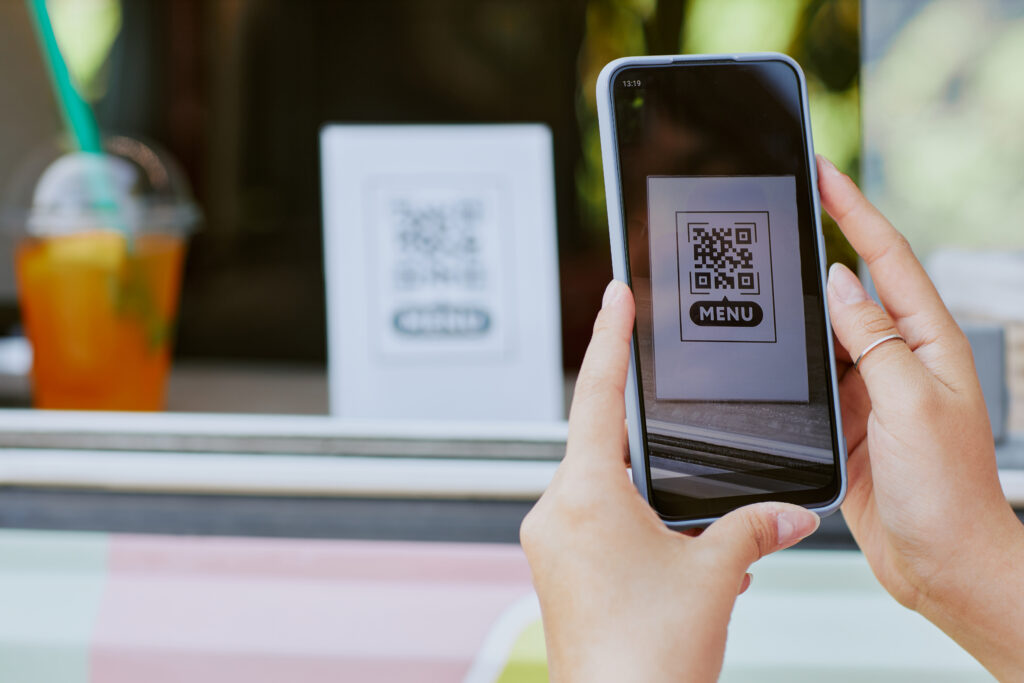
A QR code food menu lets diners scan a code on the table and see your menu on their phone. Set up well, it saves reprinting costs, keeps prices current and can take orders without a waiter. Set up badly, it’s a blurry PDF that frustrates customers.
This guide walks through creating a QR code food menu for a Malaysian restaurant, café or kopitiam in six steps, with the design details that make the difference.
Step 1: Decide what the QR code should do
There are two kinds of QR code food menu, and the choice shapes every step after it:
- View-only menu. The code opens a menu. Diners still order from staff.
- Order-and-pay menu. The code opens a menu that sends the order to your kitchen and lets the diner pay on their phone. This is usually called QR code ordering or scan-to-order.
We compare both in detail in QR code ordering vs scan-to-order. As a rule of thumb, view-only suits fine dining and small menus; order-and-pay suits busy cafés, food courts and anywhere short on staff at peak hours.
Step 2: Digitise your menu properly
Get the menu into a clean, structured form before you think about the QR code itself:
- Categories that match how people order: drinks, mains, sides, desserts, set meals.
- Short, clear names and a one-line description where a dish isn’t obvious.
- Photos of your best sellers. Diners order what they can see.
- Options and add-ons, such as ice level, spice level, extra egg or upsize. These are where a digital menu earns extra revenue.
- Languages your customers read. Many Malaysian outlets show English with Bahasa Malaysia or Chinese names.
- Price clarity. State whether prices include SST and service charge so the bill holds no surprises.
Avoid simply uploading a PDF of your printed menu. Diners have to pinch and zoom on a small screen, and you can’t mark items sold out.
Step 3: Choose how you’ll host the menu
| Option | How it works | Good for | Limits |
|---|---|---|---|
| PDF or image link | A free QR generator points to a file | A temporary menu or very small stall | Hard to read on phones; reprint the QR if the link changes |
| Digital menu page | A menu builder hosts a mobile-friendly page | View-only menus that change often | Orders still go through staff |
| Scan-to-order linked to your POS | Each table QR opens a menu that sends orders to the POS and kitchen | Busy outlets that want self-ordering and payment | Needs a POS that supports it |
If you choose a free generator, pick one that creates dynamic QR codes. A dynamic code points to a link you can change later, so you won’t need to reprint every table stand when the menu moves.
Step 4: Create one QR code per table
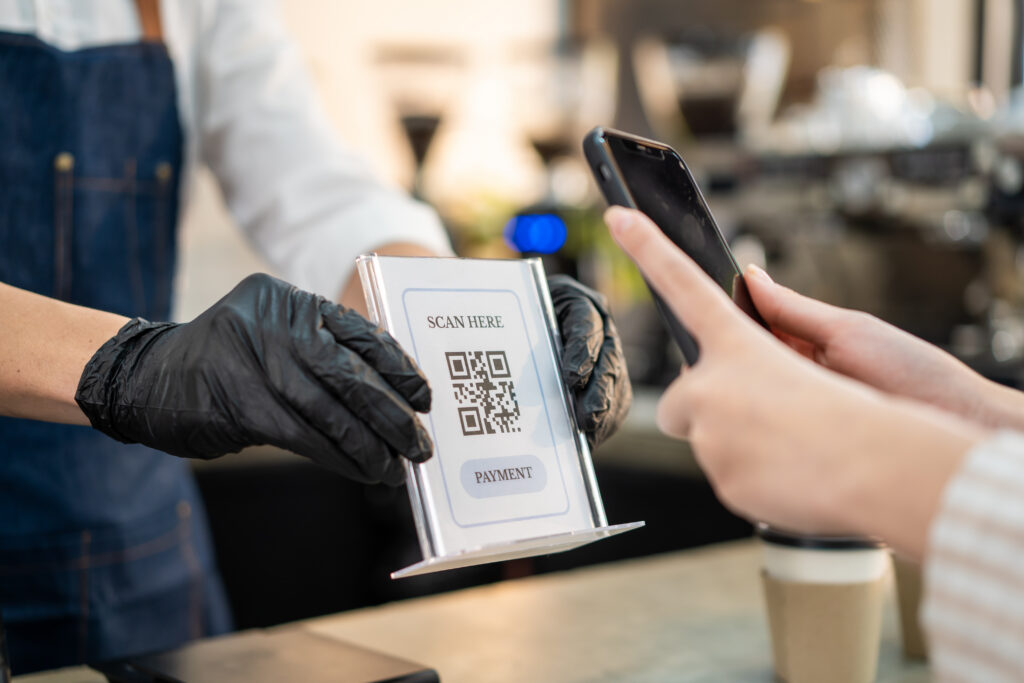
For order-and-pay menus, each table needs its own code so the kitchen knows where to send the food. Number the codes clearly and match them to your floor plan. For takeaway or a food court counter, a single counter code is enough.
For view-only menus, one code for the whole outlet works, but a table number on each stand still helps staff.
Step 5: Design and print the table stands
A QR code that’s hard to scan is worse than a paper menu. Follow these basics:
- Size: at least 3 cm × 3 cm, bigger if diners sit further away.
- Contrast: dark code on a light background. Avoid placing it on busy patterns.
- Instructions: one line, such as “Scan to view menu and order”, in the languages your diners use.
- Durability: laminate or use acrylic stands. Codes on sticky, greasy tables wear out fast.
- Placement: where light falls on it and a phone can reach it without leaning over food.
Step 6: Test, launch and train your staff
- Test every code on both iPhone and Android, using mobile data as well as your Wi-Fi.
- Place a test order from each table if you use order-and-pay, and check it reaches the right printer or kitchen screen.
- Brief staff on helping diners who’ve never scanned before. Older customers may prefer a printed menu, so keep a few on hand.
- Watch the first week’s data. Which dishes get viewed but not ordered? Which add-ons sell? Adjust photos and descriptions accordingly.
Common mistakes to avoid
- Static codes pointing to a dead link after you change menu providers.
- No sold-out marking, so diners order dishes you can’t make.
- Hidden charges that appear only at payment.
- Too many steps before ordering, such as forced sign-ups. Diners should reach the menu in one scan.
- Forgetting add-ons. A digital menu is the easiest place to suggest a drink or side. Our guide on how to increase average order value has more ideas.
Turning your QR menu into QR code ordering
If your QR code food menu is view-only today, upgrading to ordering is the bigger win. Orders go straight to the kitchen, staff spend less time taking orders, and diners can add extras as they browse. See the results one Malaysian outlet saw in our QR code ordering case study.
With EPOS360 scan-to-order, scanning opens your menu in the diner’s phone browser, with no app to download. Orders sync to EPOS360 and the kitchen in real time, and diners can pay on their phone with DuitNow QR, Touch ‘n Go eWallet, GrabPay or cards. Menu changes update instantly, so your table QR codes stay the same. EPOS says setup takes about 30 seconds: add your dishes, prices and photos, then place a QR code on each table.
If you also take orders for pickup, the same menu can run your online store website.
Frequently asked questions
How do I create a QR code for my food menu? Digitise your menu, host it on a mobile-friendly page or a scan-to-order system, generate a QR code that links to it, then print and test it on each table.
Can I make a QR code food menu for free? Yes. Free generators can link a QR code to a PDF or menu page. Choose a dynamic code so you can change the link later without reprinting.
Do customers need an app to scan a QR menu? No. Modern iPhone and Android cameras read QR codes directly, and a well-built menu opens in the phone’s browser.
What’s the difference between a QR code menu and QR code ordering? A QR code menu only shows dishes. QR code ordering lets diners place and often pay for their order from the same screen, with the order sent to the kitchen.
Should I still keep printed menus? Keep a few. Some diners, especially older customers, prefer paper, and a printed menu is a useful backup if the Wi-Fi drops.
Let every table take its own order
EPOS360 turns your QR code food menu into a full ordering and payment flow linked to your POS and kitchen. See how scan to order QR code ordering works, or check plans on our pricing page.
 Malaysia
 Global
 Singapore