Using the built-in AI assistant
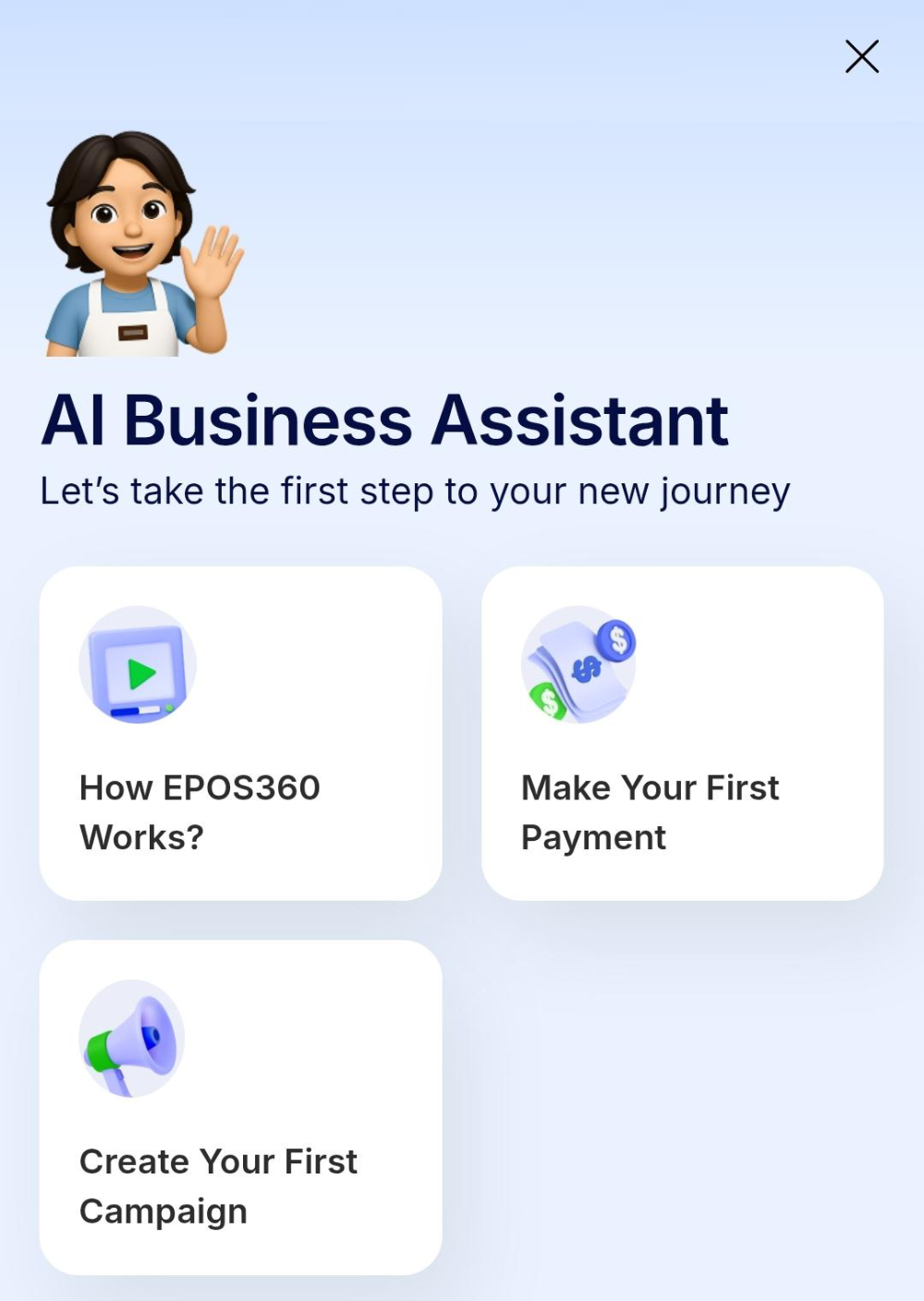
Swipe down from the top of the home screen and you get a business assistant: it builds campaigns, designs promotional posters, and answers questions about your own sales data. All without leaving the register.
Who is this for
- Owners with no marketing help who need a campaign and a poster in the same ten minutes.
- Managers who prefer asking to digging — type a question instead of hunting through reports.
Before you begin
Content is AI-generated and for reference. The assistant says so at the top of every conversation — read what it produces before publishing it.
The more specific your prompt, the better the result. Name the promotion, the discount and the poster type rather than asking for “a nice banner”.
Analysis reads your own terminal data. A store with little trading history will get thin answers.
The steps
Identical on tablet and phone.
1 Open the assistant
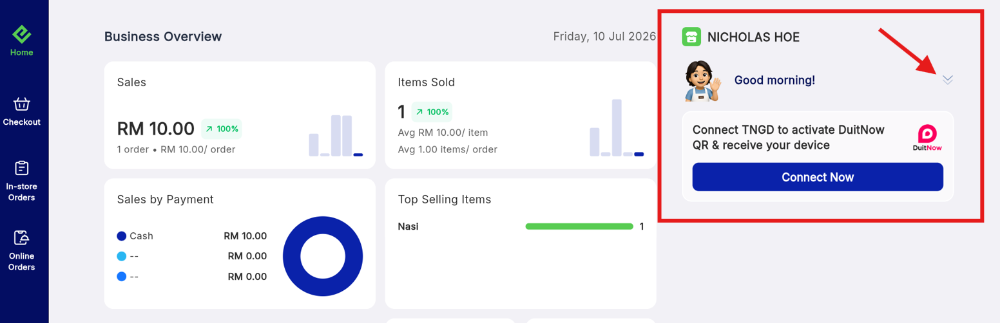
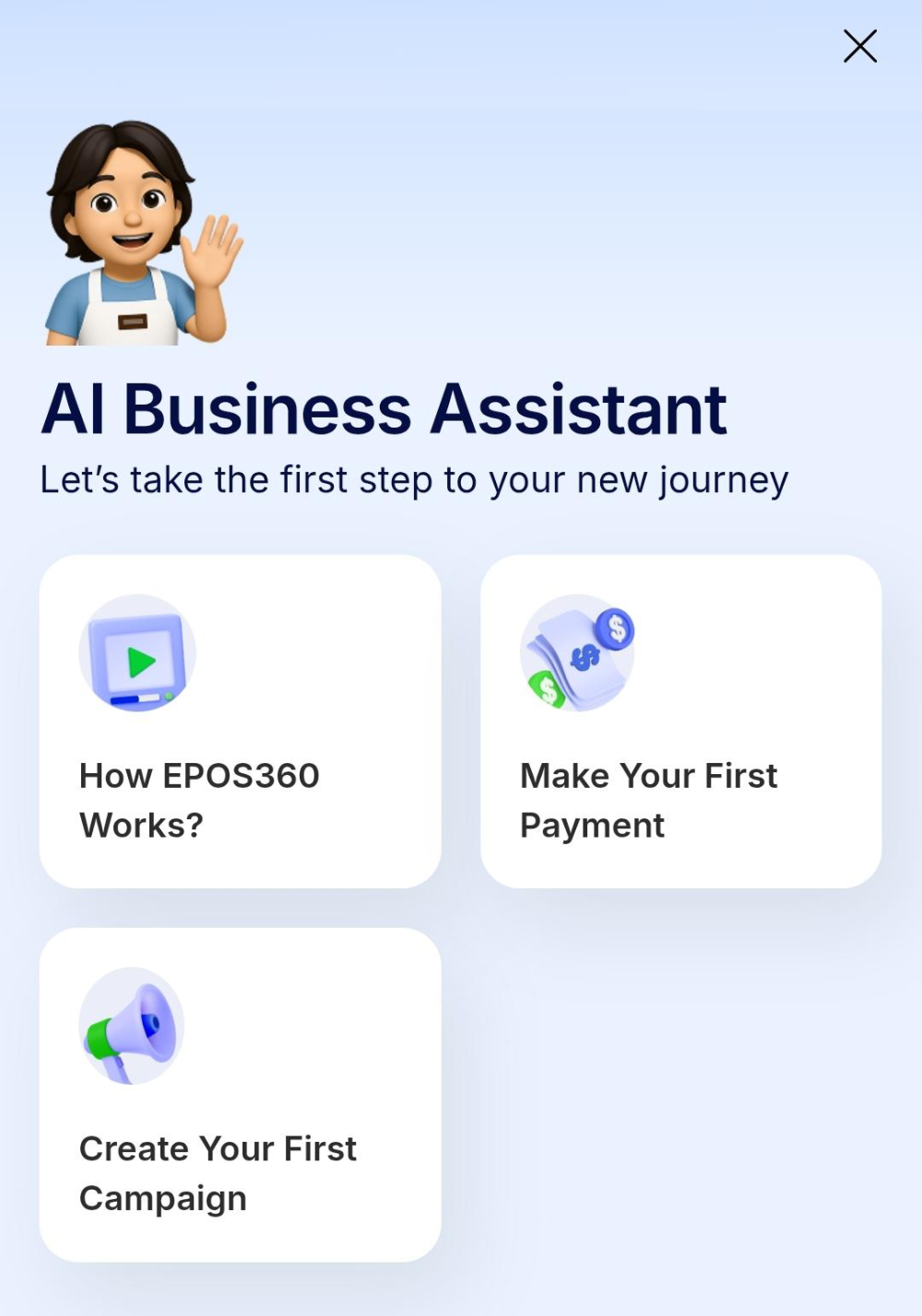
From the EPOS360 home screen, find the small chevron handle at the top centre of the workspace and swipe down. The AI Business Assistant console opens with a greeting and a grid of quick actions: How EPOS360 Works?, Make Your First Payment and Create Your First Campaign.
2 Create a campaign end to end
Tap Create Your First Campaign and a setup page loads.
3 Generate promotional images
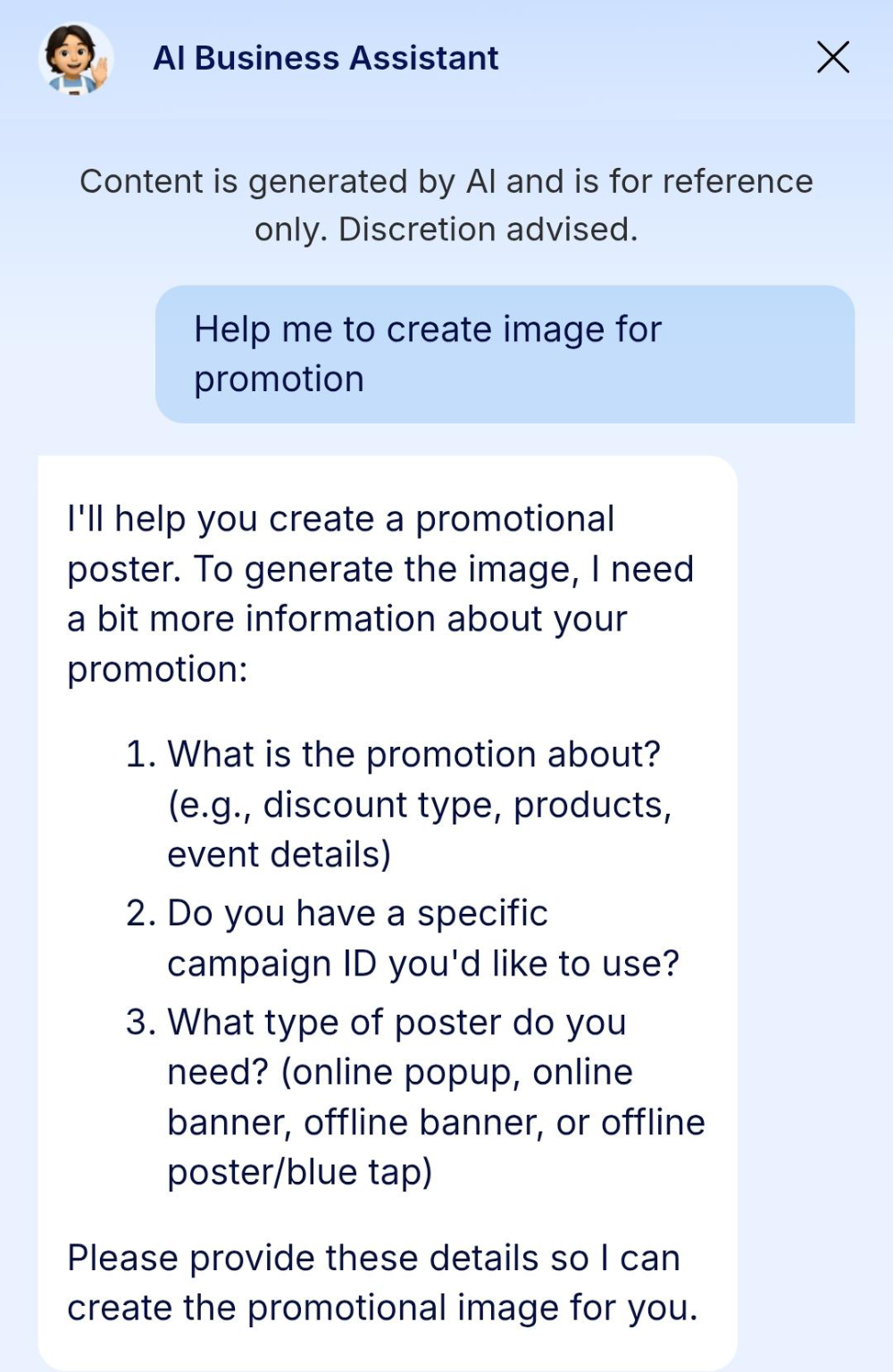
Reopen the drawer and type a request into the bottom bar, for example Help me to create image for promotion. The assistant asks three things back: what the promotion is about, whether you have a campaign ID, and what type of poster you need — online pop-up, online banner, offline banner or offline poster. Answer in one line, such as 1. Merdeka promotion 5%. It returns a finished banner with matching text, and Download image saves it to the device.
4 Ask about performance
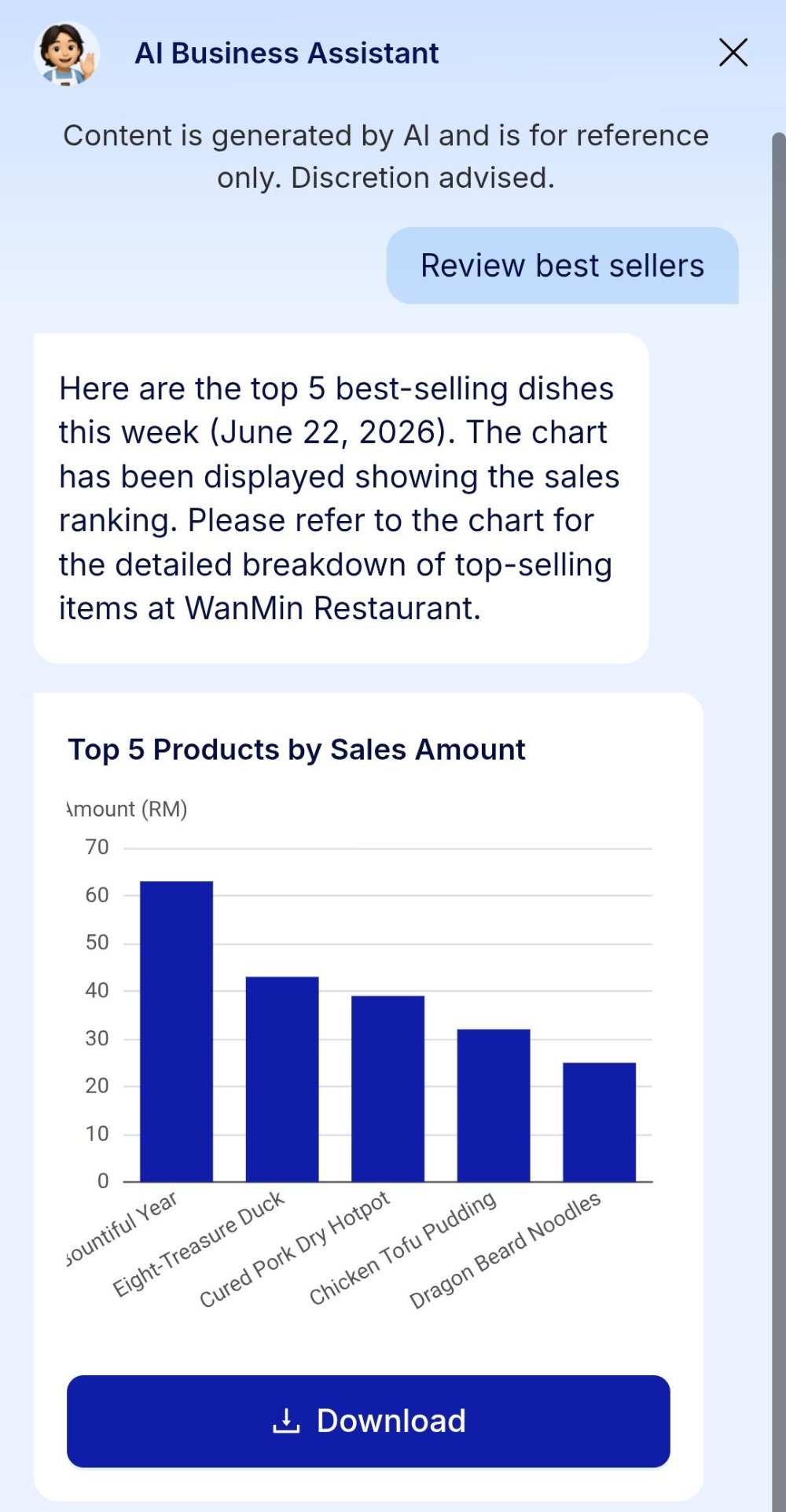
Treat the same chat box as a business consultant. Tap Review best sellers and it charts your top items for the week, with a Download button under the graph. Tap How to improve revenue? — or type your own question — and it reads your dashboard data and comes back with suggestions.
Troubleshooting
You have to be on the home workspace, and the swipe starts at the handle at the very top centre — not from the edge of the screen.
Answer all three questions in your reply: what the promotion is, the campaign ID, and the poster type. Vague prompts give generic art.
Wait for the progress bar to reach 100% and the green confirmation before tapping Publish Ads.