Log in with your Touch ’n Go merchant email
If you already trade with Touch ‘n Go (TNG), BlueTap or a Soundbox, your business is known to us. Log in with that same registered email and your profile carries straight over.

Use the registered merchant email, not a personal one. Existing Touch ’n Go, BlueTap and Soundbox merchants must sign in with the email their business is registered under, or the profile will not sync.
Who is this for
- Existing Touch ’n Go merchants, adding EPOS360 to a business that already accepts TNG payments.
- BlueTap and Soundbox users, whose business details already sit in the Touch ’n Go dashboard.
Before you begin
Install EPOS360 first on the device you will use as the register.
Have the TNG eWallet app to hand on your phone, and access to that email inbox for the OTP.
The steps
1 Find your merchant email
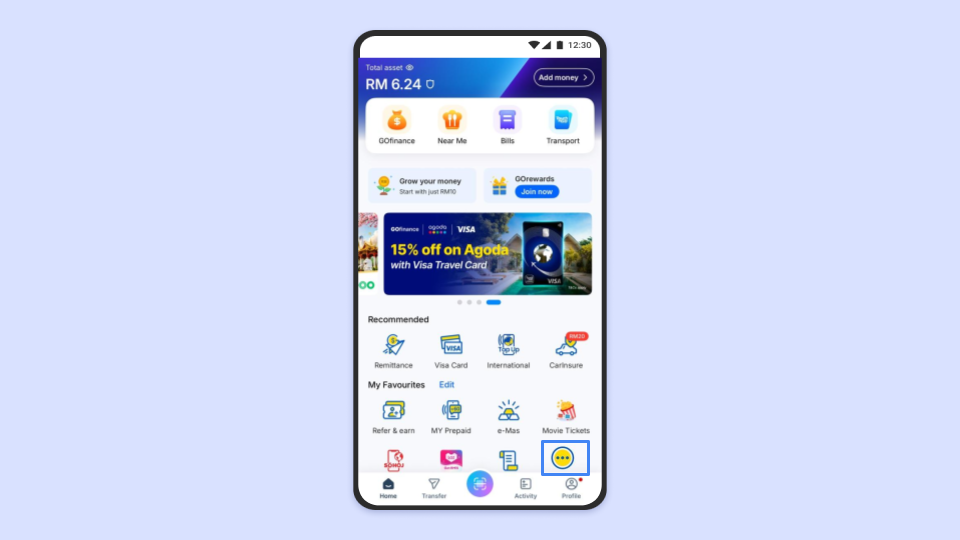
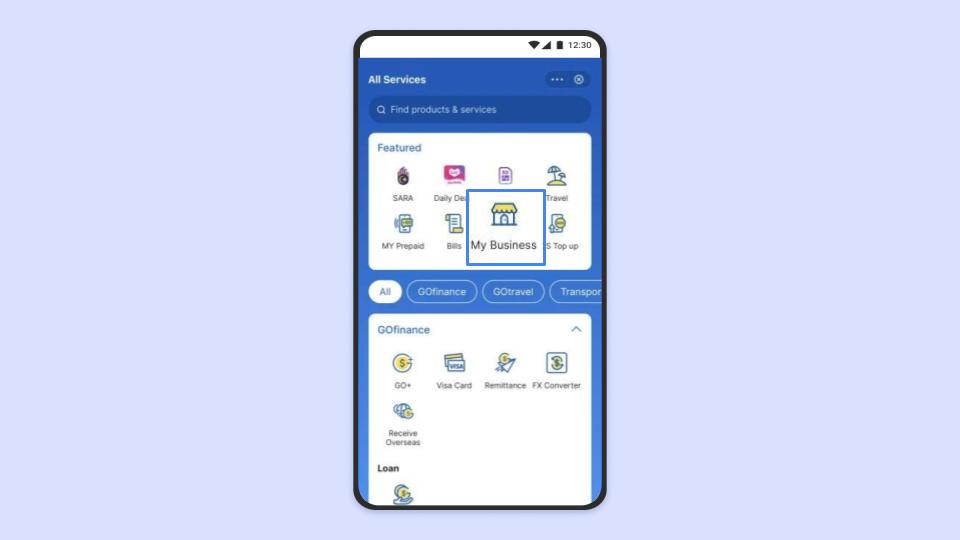
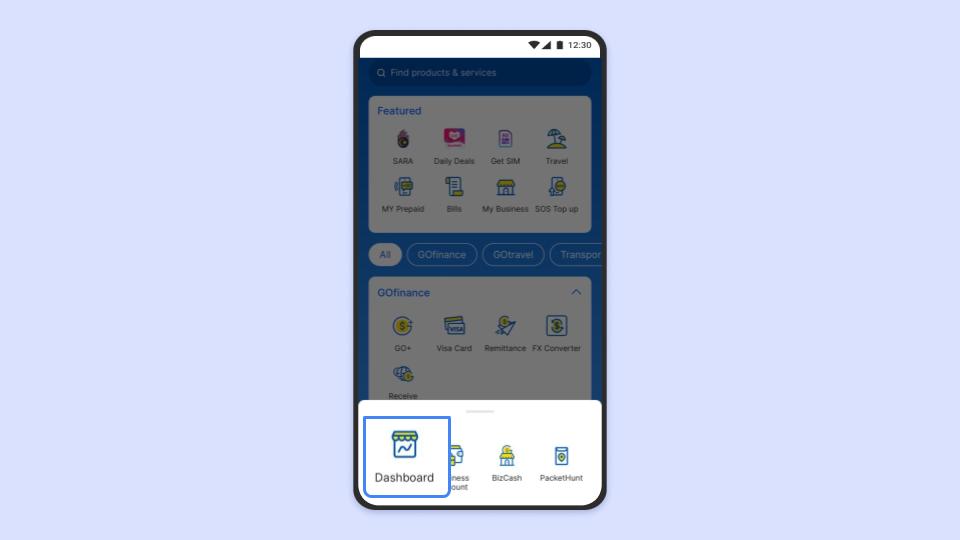
Open the Touch ‘n Go (TNG) eWallet app on your phone. On the dashboard, tap My Business, then Dashboard, and check the business name at the top is correct. Tap the Account tab at the bottom. Under Profile, note the email address shown against your business name – that’s the email your EPOS360 terminal uses.
2 Log in and set a password
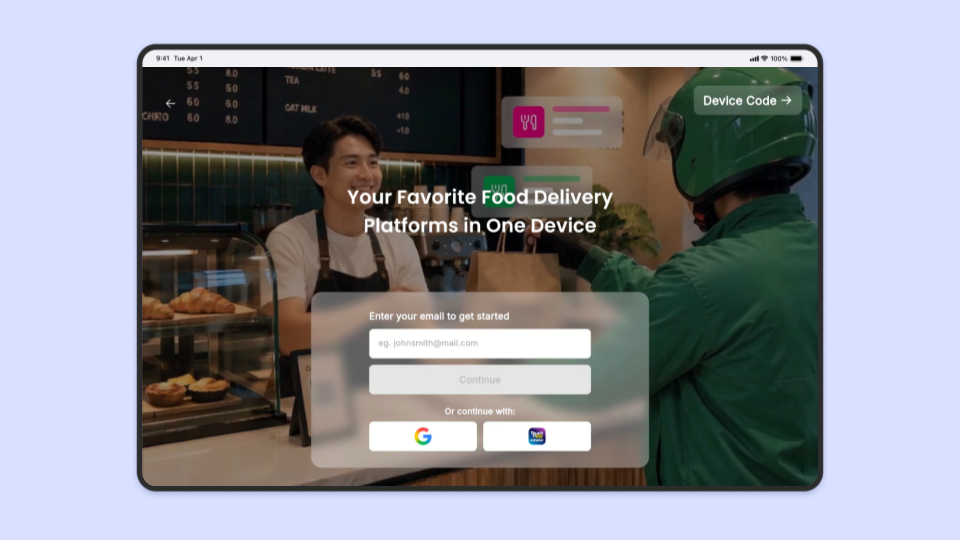
Switch back to the EPOS360 app you installed earlier. On the welcome screen, tap Login and enter that merchant email. Because this is the first time logging in on this terminal, request an OTP – a one-time code sent to that inbox – and follow the prompts to create your password. Once verified, you’ll land on the EPOS360 home screen, logged in and ready to start selling.
Troubleshooting
Check it in the TNG eWallet Account tab, character for character. A personal email will not match the merchant profile.
Check the spam folder of that mailbox, and make sure you can actually receive mail at it. Request a new code rather than reusing an old one.
If you run several outlets, switch to the right business at the top of the TNG merchant dashboard before reading the email.