Run ads and campaigns

Updated: 1 Sep 2026

Set up a discount with a promo code and a minimum spend, then decide how customers see it: a banner in the menu, a pop-up on arrival, or a bar along the bottom.

4 steps About 8 minutes Needs a live store Updated 18 Aug 2026
Rather not read? Skip to the video walkthrough at the bottom of the page.
The artwork comes with the campaign. Publish the campaign and EPOS360 generates the ad image for you.

WHO THIS IS FOR

Anyone running a promotion

  • — a festive offer, a slow-afternoon discount, a launch deal.

Owners lifting the basket size

  • with a minimum spend attached to the discount.

BEFORE YOU BEGIN

Publish your store first. Online ads appear on the storefront, so it has to be live.

Decide the numbers up front: the discount, the promo code customers type, and the minimum spend that unlocks it.

THE STEPS

The campaign comes first; the ad placement is the last step.

Step 1: Create a campaign

Tap the Marketing tab, then Campaign. Tap Create + at the top right and pick the discount type: Percentage off for a proportional cut, or Amount off for a flat ringgit deduction.
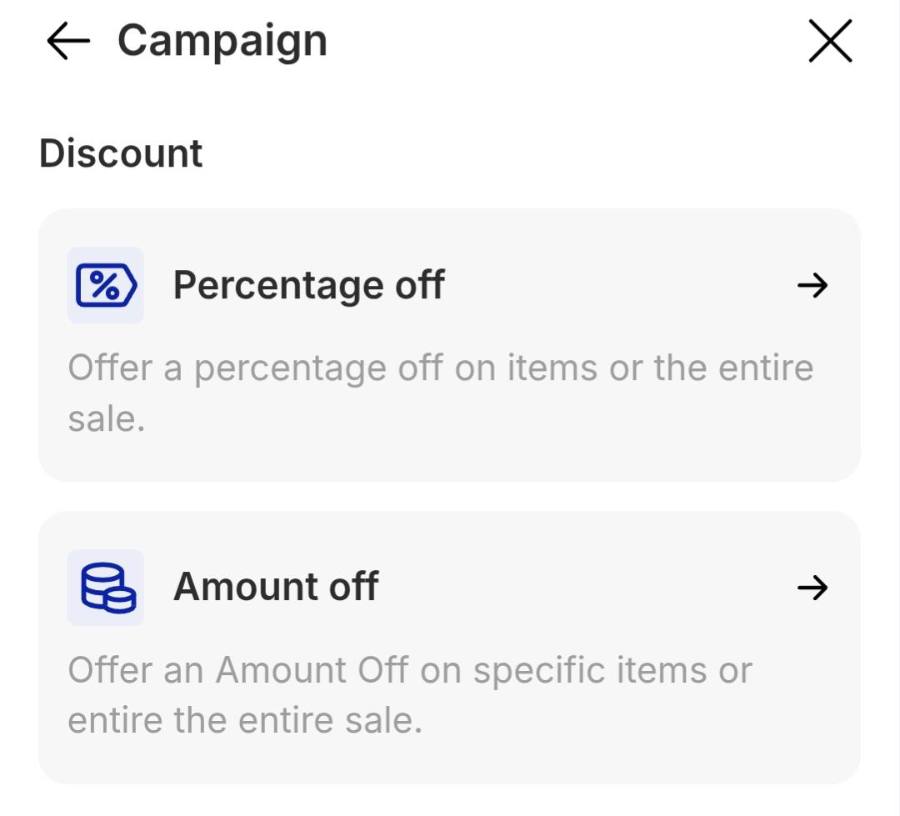
Percentage off or Amount off.

Step 2: Set the rules

Fill in the campaign form, then tap Publish Campaign.
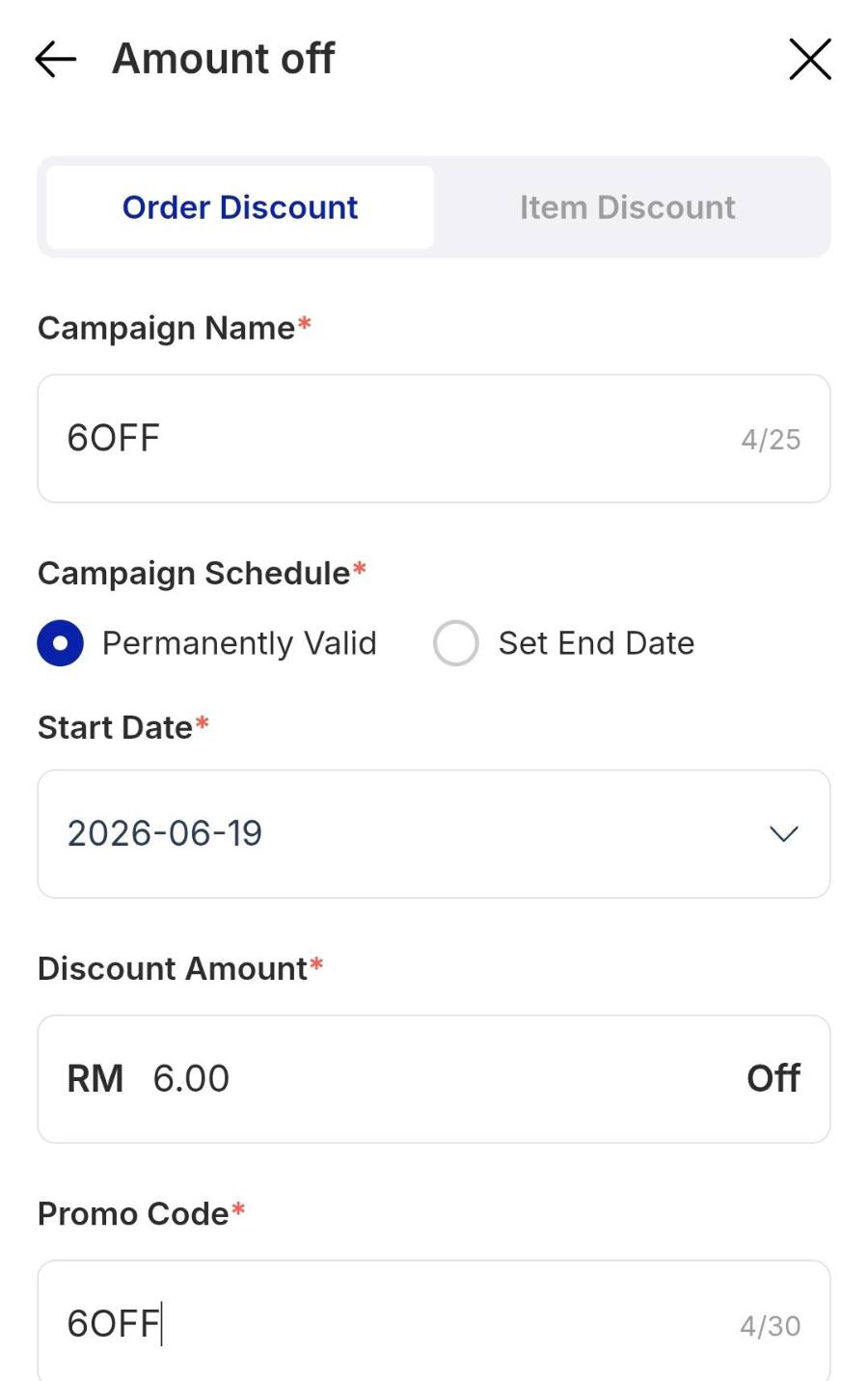
Campaign Name Your own reference, for example 6OFF.
Campaign Schedule Permanently Valid, or set an end date.
Discount Amount The deduction itself, for example RM 6.00 off.
Promo Code What the customer types at checkout, for example 6OFF.
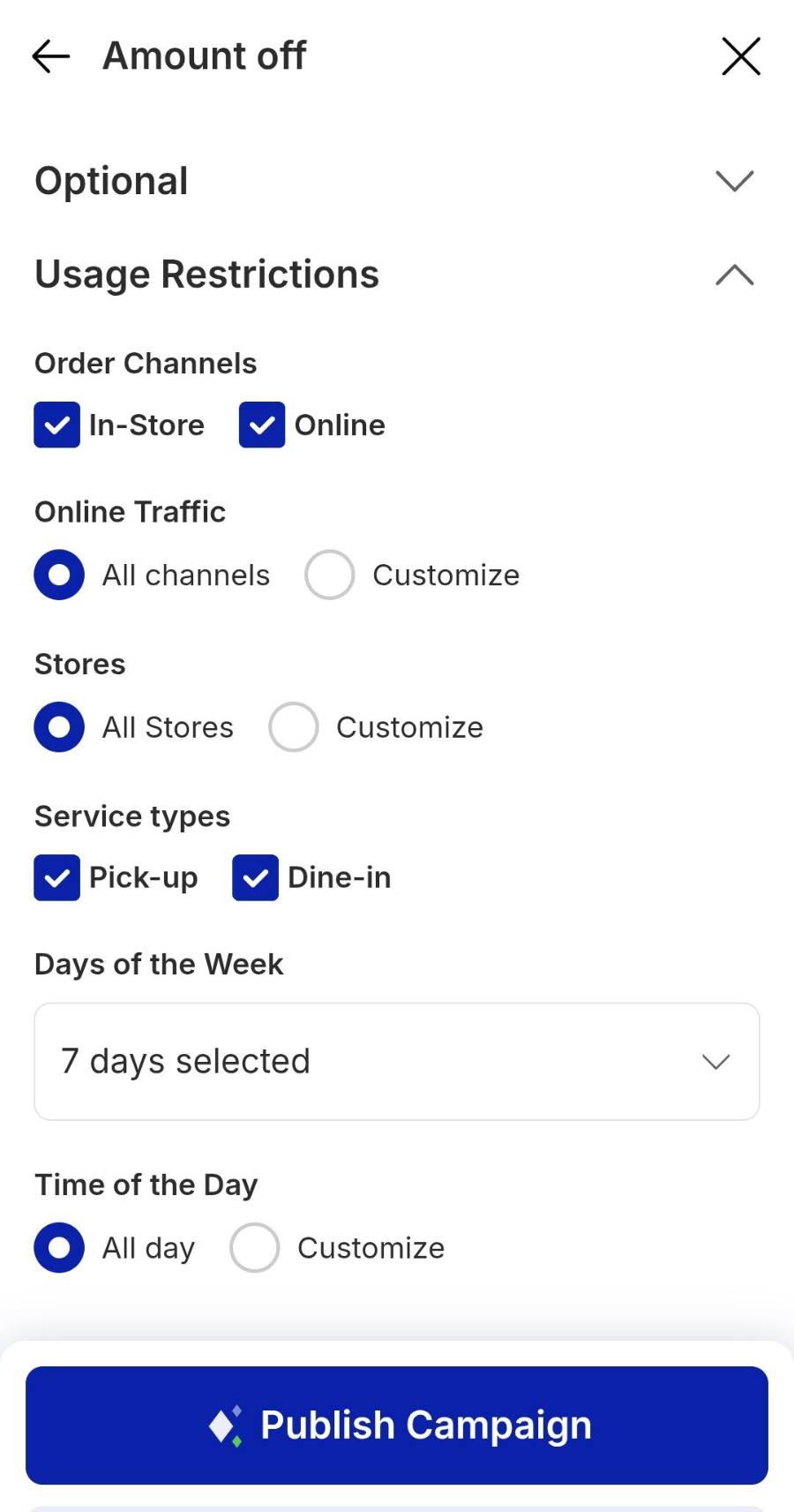
Minimum Purchase Under Optional. Set the spend needed to unlock it, for example RM 22.00.
Usage Restrictions Keep In-Store and Online ticked, choose Pick-up and Dine-in, and leave Time of the Day on All day.
Name, amount, promo code.
Channels, service types, then publish.

Step 3: Publish the ad

Once the campaign saves, you get Ads generated successfully with a ready-made image showing the offer and its minimum spend. Tap Publish Ads to push it live, or Regenerate for a different design. A green Ads published successfully toast confirms it.
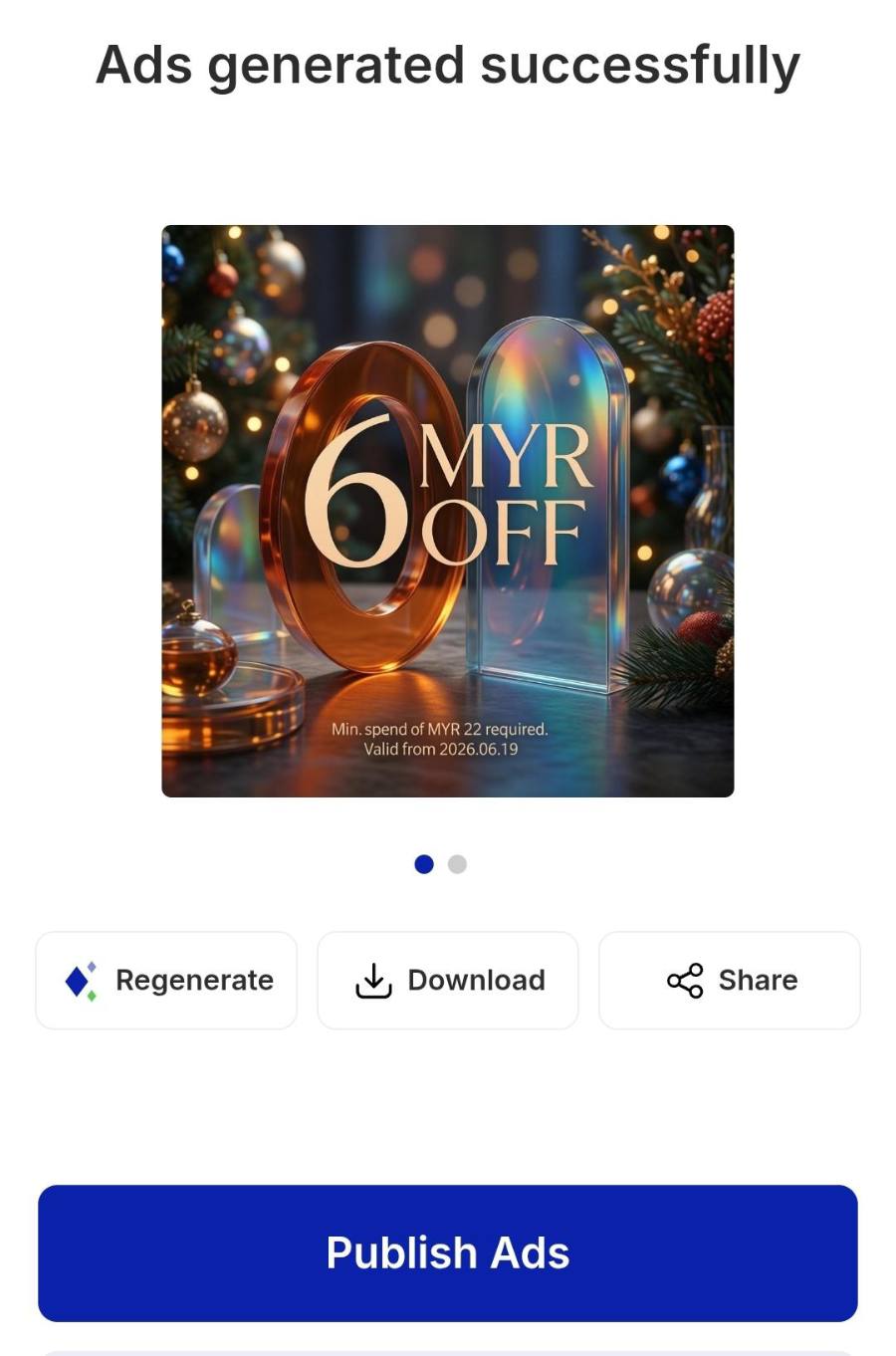
Publish Ads, or regenerate first.

Step 4: Choose where it appears

On the Marketing panel, tap EPOS360 Ads, then Online Ads, then Create Online Ads. Three tabs decide the placement.

Menu Banner A wide strip inside the menu, seen while customers browse categories.
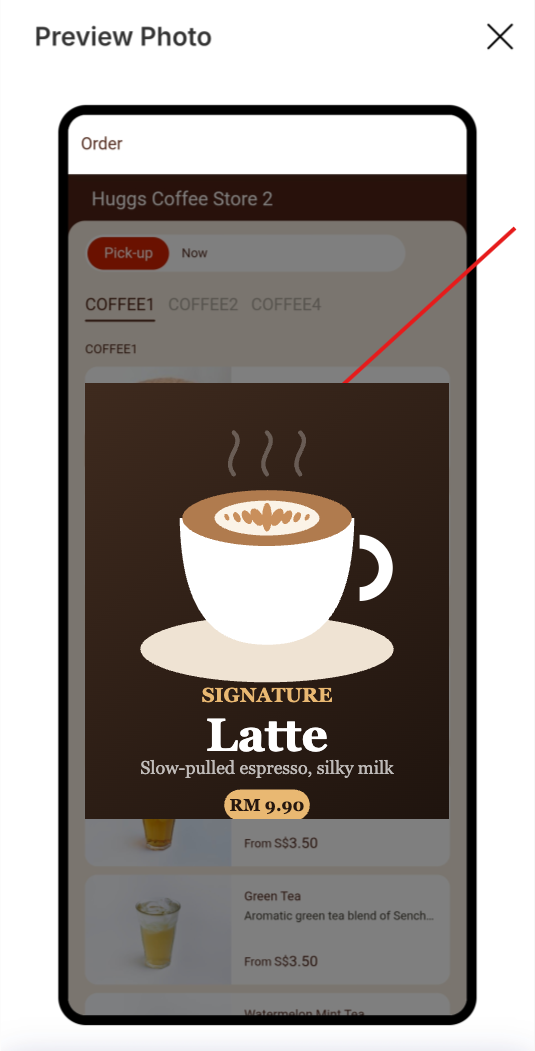
Pop-up A card that opens the moment someone lands on your link. Highest impact, most intrusive.
Promotional Bar A slim ticker along the bottom of the ordering window that stays as they scroll.

In the tab you pick, choose the campaign, type the ad title customers will read, then tap Preview or Create to put it on your storefront.

EPOS360 Ads, then Online Ads.
Three placements to choose from.
Title the ad, then preview.

Step 5: Preview before you confirm

Preview Photo shows the ad exactly as customers will see it. Check the crop and that any text on the image is still readable at that size, then tap Confirm — or Retake to upload a different image.

On a BlueTap device

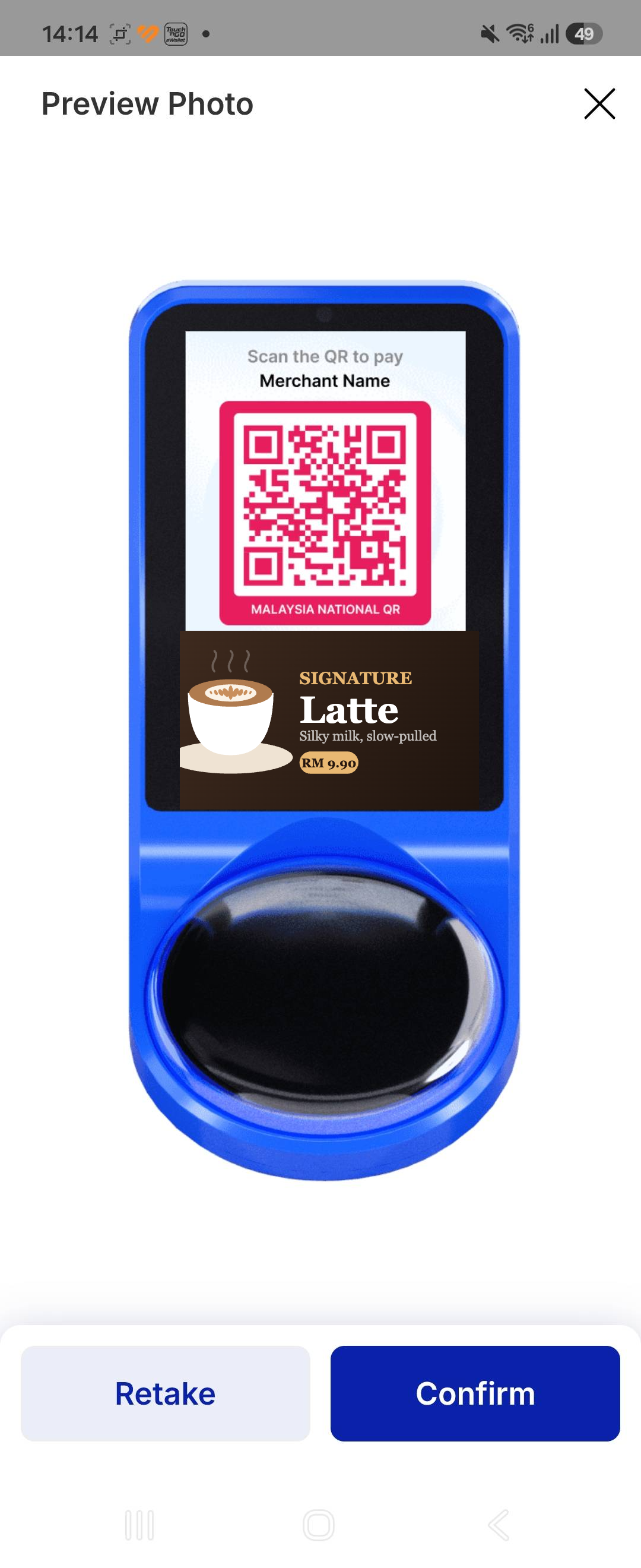
If you have a BlueTap terminal, the ad runs on its customer-facing screen — on its own, and below the DuitNow QR while a customer is paying.
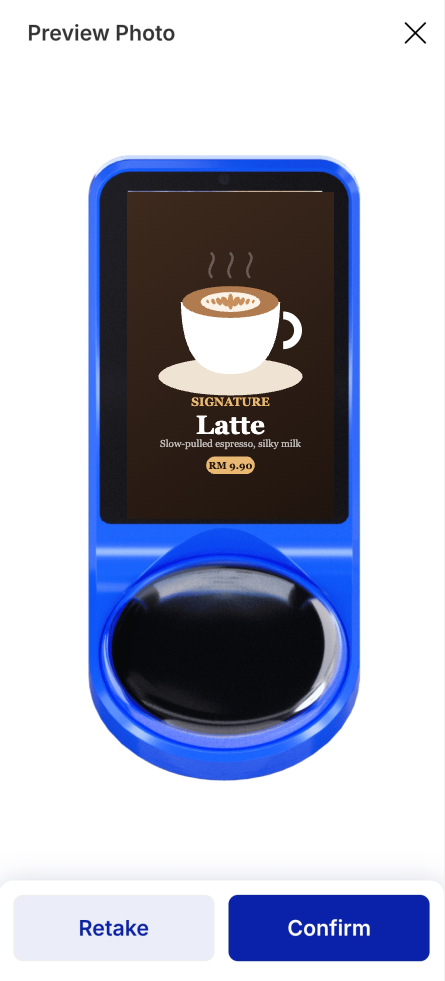
Full screen, between sales.
Under the QR at checkout.
On your online store

On the web, the same ad appears as a banner above your menu, or as a popup that greets customers when the ordering page opens.
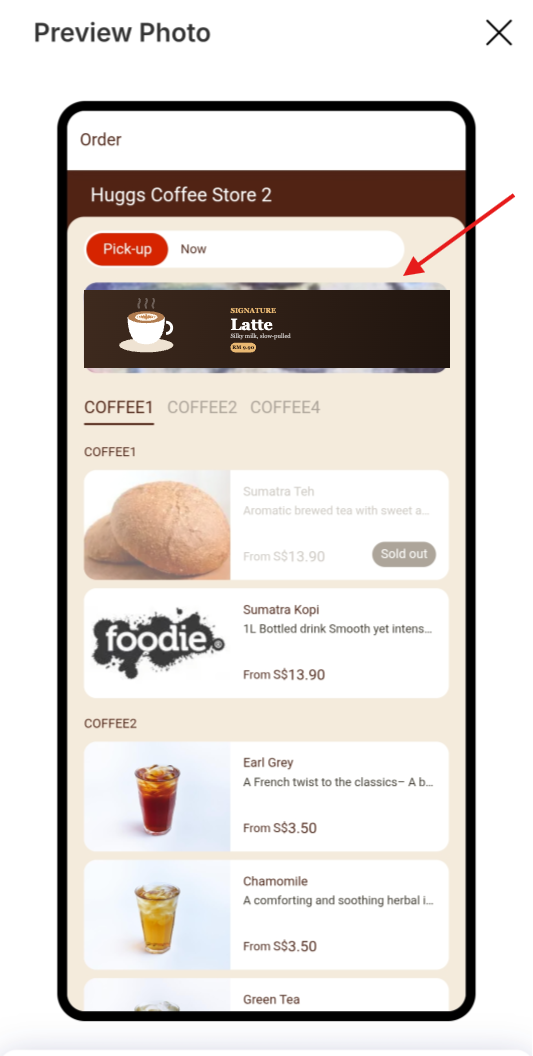
Menu banner, above the categories.
Popup, on opening the page.

WATCH IT INSTEAD

4:40

Ads & campaigns walkthrough

Is your offer showing in the store?

Need help? Contact support

WHERE TO GO NEXT

NEXT

Delivery integration

Read the guide →
NEXT

Register members

Read the guide →

IF IT LOOKS WRONG

Check the minimum purchase. Below that spend the code will not apply, even though the campaign is live.

Publishing the campaign is not the same as publishing the ad. Tap Publish Ads, then create the placement under Online Ads.

Order Channels under Usage Restrictions controls that. Tick In-Store as well as Online.

Still need help?

On-site set up and 1:1 training

Get a dedicated trainer to set up and address your needs on the spot.

View plans

Attend free online webinar

Pre-recorded set up demo that you can watch anytime at your own pace.

Sign up